

Your paycheck, gig payout, or benefits payment has to land somewhere. If that somewhere is Chime, the setup takes a few minutes, but the first deposit can still feel like a guessing game. Which number goes on the form? Does it work without an employer? Why isn’t the deposit showing as pending?
This guide covers how to set up direct deposit on Chime using the three methods Chime publishes, plus the paths for gig work, Social Security, and unemployment. It also covers what to check once the money arrives.
One quick fact first: Chime is a financial technology company, not a bank. Banking services are provided by The Bancorp Bank, N.A. or Stride Bank, N.A. That detail matters later, because the bank name on your form will be one of those two, not “Chime.”
What you need before you start
You need three things. Each one lives inside the Chime app.
- Your account and routing numbers: Go to Move > Set up direct deposit > Account numbers.
- The completed direct deposit form: Go to Move > Set up direct deposit > Get direct deposit form. Chime emails it to you as a completed PDF. On chime.com, the path is Profile > Direct deposit setup > Get completed form.
- Your exact account name: The name on the deposit must match the name on your Chime account. A nickname or a missing middle initial on payroll can cause problems.
The completed form also lists the bank name and address. Yours will show one of these:
| Bank on your form | Address |
|---|---|
| Stride Bank N.A. | 324 W Broadway Ave, Enid, OK 73701 |
| The Bancorp Bank, N.A. | 345 N. Reid Place, Suite 700, Sioux Falls, SD 57103 |
Use whichever appears on your own form. Don’t swap in the other one. The PDF is the safest single document to hand over, because every field is already filled in correctly for your account.
Step by step with an employer, as Chime publishes it
Chime lists three ways to set up direct deposit. Here they are in Chime’s order.
1. Instant setup in the app
- Open Move > Set up direct deposit > Instant setup.
- At “Who pays you?”, search for your employer or payroll service.
- Sign in with your payroll credentials.
- Complete the steps shown.
This is the shortest path if your payer appears in the search.
2. Your employer or payroll portal
- Find your numbers at Move > Set up direct deposit > Account numbers.
- Log in to your employer’s payroll portal. Chime names ADP as an example.
- Add your Chime account.
- Choose the amount to deposit.
- Confirm with your employer.
Step five is easy to skip. Don’t skip it. A quick message to HR or payroll catches mismatches before payday.
3. The direct deposit form
Go to Move > Set up direct deposit > Get direct deposit form. Chime emails a completed PDF. Send it to your employer’s payroll contact. This works well for small employers without a self-service portal.
Step by step without an employer: gig platforms and government benefits
You don’t need a traditional job to use direct deposit. Gig platforms and benefits providers are both supported.
Gig platforms and benefits providers in the app
Use the same Instant setup flow: Move > Set up direct deposit > Instant setup > Who pays you? Search for your gig platform or benefits provider, sign in, and finish the steps. If yours doesn’t appear, use your account numbers or the completed form inside that platform’s payout settings.
Social Security
Chime’s page on direct deposit for government benefits lists three ways to update your deposit with Social Security:
- Online at my.ssa.gov
- By phone at 1-800-772-1213
- In person at a Social Security office
Select Checking as the account type. Updates usually take 1 to 2 payment cycles. Plan for your next payment, or the one after it, to still go to your old account.
Unemployment
Set up deposit through your state’s unemployment portal. Some states default to a prepaid card. If yours does, you’ll need to opt out of the card and choose direct deposit instead. Look for that setting during setup so you don’t miss it.
How long the first deposit takes
Chime doesn’t promise a fixed day for your first deposit. Your payer’s schedule decides that. Once your payer starts sending to Chime, though, the timing rule is clear.
Chime explains that money is posted as soon as Chime receives the payment file. That can be up to two days before your scheduled pay date. “Up to” is the key phrase. If your employer sends the file late, the money arrives later. Chime doesn’t publish a guaranteed posting hour, so don’t build a bill around a specific time of day.
Two practical notes:
- The first cycle may still go to your old bank. Payroll and benefits changes take time to process. Keep that old account open until you see a deposit land in Chime.
- Early arrival can vary from cycle to cycle. One week the money may arrive two days early. The next it may arrive one day early.
For more on timing patterns and the first-paycheck catch, see this breakdown of how early Chime deposits land and what to expect from your first paycheck.
Checking it worked, and what to do if it did not land
Chime does not show deposits as pending. That surprises a lot of people. You won’t see a “coming soon” line. The deposit either posts or it isn’t there yet.
So “nothing showing” on Wednesday morning isn’t proof something broke. It may just mean Chime hasn’t received the file. Chime’s guide to finding a missing direct deposit walks through the checks. Here’s a calm order to work through:
- Check your pay date. If it hasn’t passed, the file may simply not have arrived.
- Compare names. The name on the deposit must match your Chime account name.
- Confirm the routing number. If your employer says the routing number was rejected, use the one printed on your completed form. Resend the PDF if needed.
- Ask payroll for the deposit details. Have them confirm the account number, amount, and date sent.
- Check your old account. First deposits often go there while the change processes.
If your pay date has passed and steps one through five don’t explain it, contact your payer first. They can see where the money went. This guide covers what to check in the first hour after a deposit doesn’t hit.
Once it lands: what is actually safe to spend
Your Chime balance jumps. It’s tempting to treat that number as spending money. It isn’t, quite.
An early deposit makes the gap to your next paycheck longer. Getting paid two days early means stretching that money across those extra two days too. Your rent, phone bill, and car payment don’t move earlier just because the money did.
Here’s the arithmetic, using simple numbers:
| Line | Amount |
|---|---|
| Balance after deposit | $1,850 |
| Bills due before next payday | − $1,120 |
| Planned savings | − $150 |
| Safety cushion | − $100 |
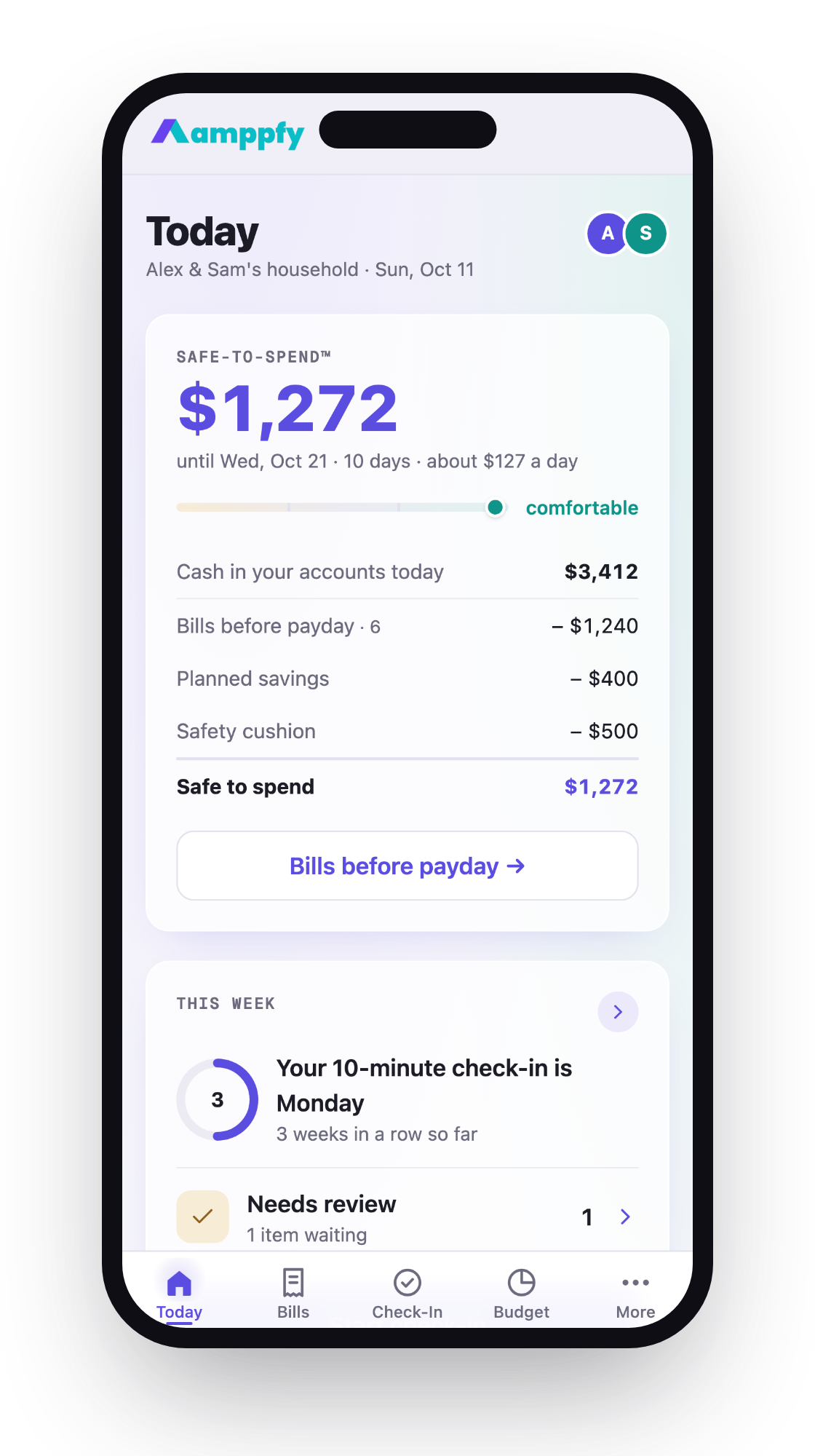
| Safe-to-Spend™ | $480 |
That $480 is the honest figure. It’s the amount you can use without touching a bill. The $1,850 headline is accurate, but most of it is already spoken for.
A note on qualifying deposits: Chime defines a qualifying direct deposit as a single deposit of $200 or more from an employer, payroll provider, gig economy payer, or government benefits payer (as of October 2026). Some Chime features depend on it. Check that page for which ones apply to you.
For the full walkthrough of every route (employer form, your bank’s pre-filled form, or a government payment), see how to set up direct deposit.
FAQ
Can I set up Chime direct deposit without an employer?
Yes. Use Instant setup to search for your gig platform or benefits provider. For Social Security, update through my.ssa.gov, 1-800-772-1213, or an office. For unemployment, use your state portal and opt out of any default prepaid card.
Why doesn’t my deposit show as pending?
Chime doesn’t show deposits as pending. Money posts when Chime receives the payment file, up to two days before your pay date. Until then, nothing appears.
My employer says the routing number was rejected. What now?
Use the routing number on your completed direct deposit form. Get the form at Move > Set up direct deposit > Get direct deposit form. Chime emails the PDF to you.
Which bank name goes on payroll paperwork?
Use the bank shown on your completed form. It will be either Stride Bank N.A. or The Bancorp Bank, N.A. Chime itself is not the bank.
Setting up a Chime deposit comes down to a few steps. Pick one of Chime’s three methods, or use Instant setup or the agency route if you don’t have an employer. Match your name exactly, use the routing number on your completed form, and keep your old account open through the first cycle.
Then, once the deposit lands, let the bills due before your next payday come out first. Everything after that is yours to use. Amppfy turns that math into one number: type in your balances (about 30 seconds per account), add your bills and payday, and see what’s left. Take ten minutes this week to set up your Safe-to-Spend™ number in Amppfy.