

You’ve probably asked yourself how to find all your subscriptions at least once, usually right after spotting a charge you don’t recognize. The truth is most people carry between eight and fifteen recurring charges across different cards, email accounts, and app stores. A few dollars here, a few there: none of them feel big enough to investigate. But stacked together, they can quietly eat through hundreds of dollars a month. The fix takes about an hour, and it starts with the statements you already have.
Why Subscriptions Hide: Small, Monthly, and on Different Cards
Subscriptions survive by staying small and forgettable. A $4.99 cloud storage plan doesn’t trigger the same mental alarm as a $200 grocery run. Your brain files it under “normal” and moves on. That’s by design: companies price recurring charges just below the threshold where you’d pause and question them.
The second problem is fragmentation. You might pay for streaming on a debit card, a fitness app through your iPhone, a meal-kit service on a joint credit card, and a VPN through PayPal. No single statement shows the full picture. Each charge lives on its own island, and you’d need to check four or five places to see them all.
Timing makes things worse. Some subscriptions bill monthly. Others bill quarterly or annually. An annual renewal in March won’t show up on your April statement, so a quick glance at last month’s transactions misses it entirely. That yearly antivirus charge or domain renewal sits quietly until it fires again.
Free trials add another layer. You signed up, forgot to cancel, and now you’re three months into paying for something you used once. According to a 2022 survey by C+R Research, 42% of respondents reported paying for a subscription they’d forgotten about. That number hasn’t shrunk since. The pattern is consistent: low price, scattered accounts, irregular billing cycles. Each factor alone is manageable. Together, they make subscriptions almost invisible.
The 90-Day Statement Sweep, Step by Step
This is the core method for finding every recurring charge you’re paying for. Ninety days catches monthly charges at least twice and picks up most quarterly ones. Here’s the process:
Gather Your Statements
- Log into every bank account, credit card, and debit card you use.
- Download or view the last 90 days of transactions for each one.
- If you use a prepaid card or a partner’s card for shared expenses, include those too.
Scan for Recurring Charges
Go through each statement line by line. You’re looking for:
- Charges that repeat on the same date each month (or close to it)
- Merchant names you don’t immediately recognize (subscription companies often bill under parent-company names)
- Small charges under $15 that you might normally skip over
- Annual charges that appear once in the 90-day window
Build a Quick Reference Table
As you find each subscription, drop it into a simple table:
| Subscription | Amount | Billing Cycle | Card Used | Still Using? |
|---|---|---|---|---|
| Spotify Family | $16.99 | Monthly | Visa ending 4421 | Yes |
| Adobe Creative Cloud | $59.99 | Monthly | Amex ending 7788 | Rarely |
| iCloud+ 200GB | $2.99 | Monthly | Apple ID | Yes |
| Ancestry.com | $99.00 | Annual | Visa ending 4421 | No |
This table becomes your single source of truth. Don’t skip the “Still Using?” column: it’s the whole point of the exercise.
Flag the Unknowns
If you see a charge and can’t identify the merchant, search the exact name from your statement in your email inbox. Most subscription services send a receipt or welcome email. That usually reveals what the charge is and how to cancel it.
Check the App Stores and PayPal Too
Your bank statements won’t catch everything. Some subscriptions bill through intermediaries, and those show up as a single line item like “Apple.com/bill” or “PayPal” rather than the actual service name.
Apple App Store
Open Settings on your iPhone, tap your name at the top, then tap Subscriptions. You’ll see every active and expired subscription tied to your Apple ID. Pay attention to ones marked “Renews” with a future date: those are still charging you. Apple groups them neatly, but you might be surprised by what’s still active.
Google Play Store
Open the Play Store app, tap your profile icon, then Payments & Subscriptions, then Subscriptions. Same idea: look for anything active that you’ve stopped using. If your partner uses Android, ask them to check their account too.
PayPal
Log into PayPal, go to Settings, then Payments, then Manage Automatic Payments. This page lists every merchant authorized to pull money from your PayPal balance or linked bank account. Some of these authorizations date back years. You can cancel them directly from this screen.
Amazon
Amazon Subscribe & Save items and Prime add-on subscriptions (Paramount+, AMC+, etc.) often fly under the radar. Go to Your Account, then Memberships & Subscriptions to see the full list.
The point is simple: bank statements show you where money left your account, but app stores and payment platforms show you who has permission to keep taking it. Both views matter.
Put Them on One List with the Next Charge Date
Once you’ve swept your statements and checked your app stores, consolidate everything into a single list. The format doesn’t matter much: a spreadsheet, a notes app, or a dedicated subscriptions tracker all work. What matters is that every recurring charge lives in one place with its next billing date.
Here’s why the next charge date is critical. Knowing you pay $12.99 for a streaming service is useful. Knowing it charges on the 22nd of each month is what lets you cancel before the next cycle or factor it into your spending plan. Without the date, you’re still guessing.
A practical layout looks like this:
| Subscription | Monthly Cost | Next Charge | Action |
|---|---|---|---|
| Netflix Standard | $17.99 | Jan 14 | Keep |
| Headspace | $12.99 | Jan 8 | Cancel before Jan 8 |
| Microsoft 365 | $9.99 | Feb 3 | Keep |
| HelloFresh | $65.93 | Jan 19 | Pause |
That “Action” column turns your list from a reference sheet into a to-do list. Set a reminder for any cancellation dates so you don’t miss the window.
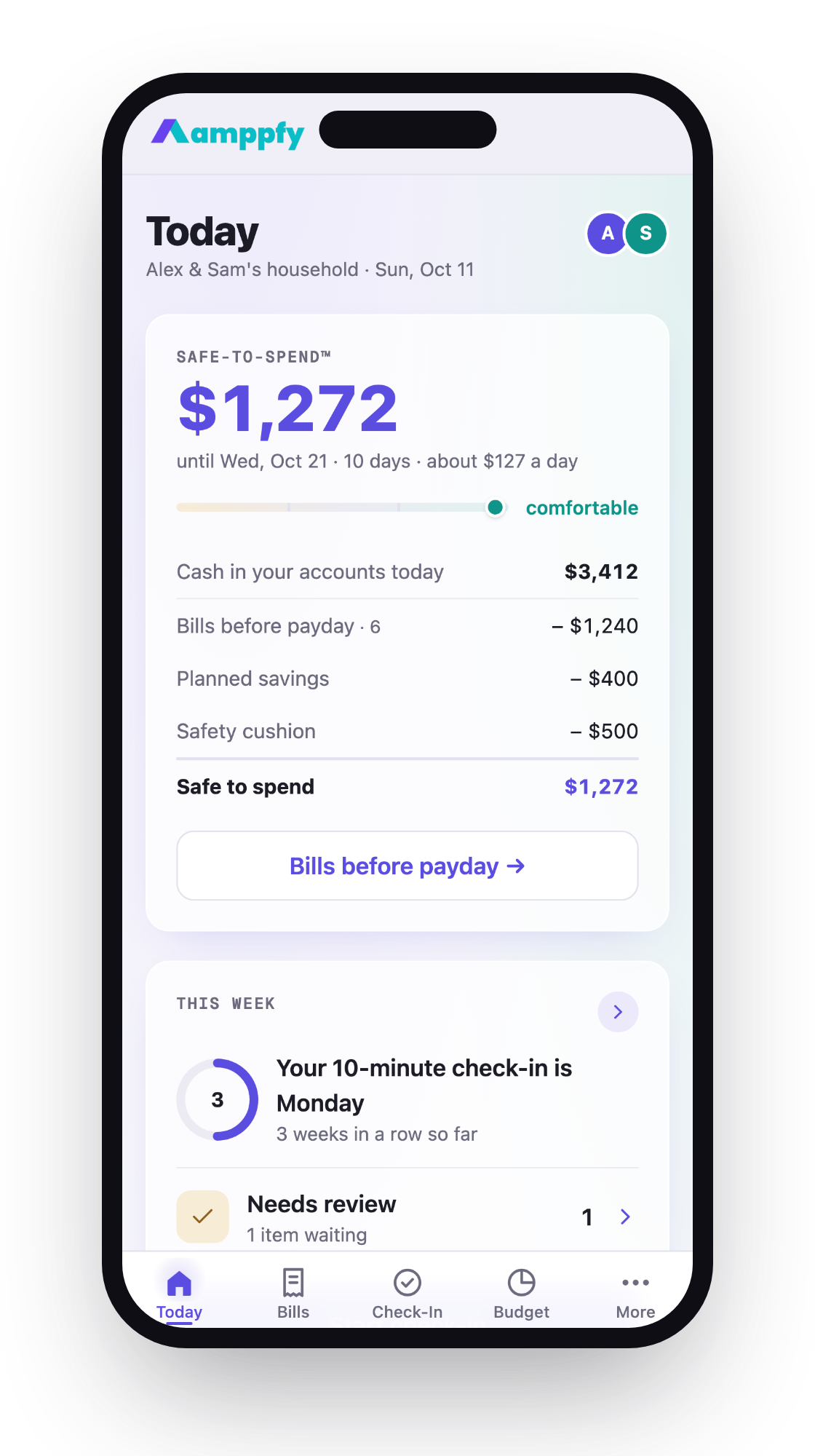
If you and a partner split bills, this is also the moment to decide who owns which subscription. One person paying for three overlapping streaming services on different cards is more common than you’d think. Amppfy’s subscriptions list lets you log each charge with its next billing date so both partners see the same picture, and the amounts automatically factor into your Safe-to-Spend™ number before payday.
For the math-minded: say you find $847 in monthly subscriptions across all your accounts. You keep $612 worth and cancel $235. That’s $2,820 back in your pocket over the next year: real money from one hour of work.
A Ten-Second Monthly Question: Still Using It?
The statement sweep is a one-time project. Keeping your list clean is the ongoing habit, and it takes almost no effort.
Once a month, when you update your balances or review your spending, glance at your subscriptions list and ask one question about each entry: did I use this in the last 30 days? That’s it. No spreadsheet formulas, no guilt. Just a yes or no.
If the answer is no for two months in a row, cancel it. Most services let you resubscribe instantly if you change your mind, so there’s no real risk. You’re not losing access forever: you’re just stopping the automatic drain until you actually want the service again.
A few patterns to watch for:
- Seasonal subscriptions you forget to pause (meal kits in summer, fitness apps after January)
- Tier creep where a service quietly bumped you from a $9.99 plan to $14.99
- Duplicate coverage like two cloud storage plans or two music services because one came bundled with your phone
This monthly check pairs well with a weekly financial check-in. Spend ten minutes updating your account balances and reviewing what’s due before your next paycheck. The subscriptions glance adds maybe ten seconds to that routine. Amppfy’s bill calendar marks every upcoming charge, including subscriptions, so you see exactly which day each one hits.
The goal isn’t to eliminate all subscriptions. Some of them genuinely make your life better. The goal is to make sure every dollar leaving your account on autopilot is a dollar you’d choose to spend again today.
Frequently Asked Questions
How do I find subscriptions I signed up for with an old email address?
Log into that old email account and search for terms like “subscription,” “receipt,” “renewal,” or “your plan.” Most services send confirmation emails at signup and with each billing cycle. If you can’t access the email anymore, check your bank statements for charges you can’t identify and contact those merchants directly. They can look up your account by the card number on file.
Will canceling a subscription immediately cut off my access?
It depends on the service. Most subscriptions let you keep access until the end of your current billing period. Netflix, Spotify, and similar platforms work this way: you cancel, but you can still use the service until the date you already paid through. A few services, especially software licenses, may cut access right away. Check the cancellation confirmation screen before you finalize.
What’s the fastest way to find all my subscriptions if I only have 15 minutes?
Start with your two most-used payment methods: probably your primary debit card and your Apple or Google account. Pull up 60 days of transactions on the card and check the subscriptions page in your app store settings. You won’t catch everything, but you’ll find the majority of your charges in those two places. Come back later to check secondary cards and PayPal.
Should I use a dedicated card just for subscriptions?
Yes, this is one of the simplest long-term fixes. Pick one credit or debit card and move all recurring charges to it. From that point forward, one statement shows every subscription in one place. If that card is ever compromised, you also get a natural audit moment: as you update each service with a new card number, you’ll decide whether each one is still worth keeping.
Keep the List Alive
Finding every subscription you pay for is a one-hour project that can save you thousands over time. Pull 90 days of statements, check your app stores and PayPal, put everything on one list with the next charge date, and ask yourself monthly whether each one still earns its spot.
The system works because it’s simple enough to maintain. No complex tracking. No shame about past spending. Just a clear view of where your money goes on autopilot, and a quick monthly habit to keep it honest. If you want your subscriptions to automatically factor into what’s safe to spend before payday, Amppfy’s free app handles that: add your subscriptions once, and the number updates itself.
Take 30 minutes this week to start your statement sweep. Future-you will appreciate it.