
Do your first check-in
Pick a moment that fits your week: Sunday evening, Monday morning, payday Friday. The check-in follows the same four steps every time, and most people finish in about ten minutes.
Your first check-in
Section titled “Your first check-in”Until you close your first check-in, Today’s This week card reads Your first check-in · about 3 minutes with Start now. With no bills entered yet it reads Nothing to confirm yet. Add this month’s bills, then check in, with Add a bill. After the first close, the card shows your check-in day and the streak.
Start a check-in
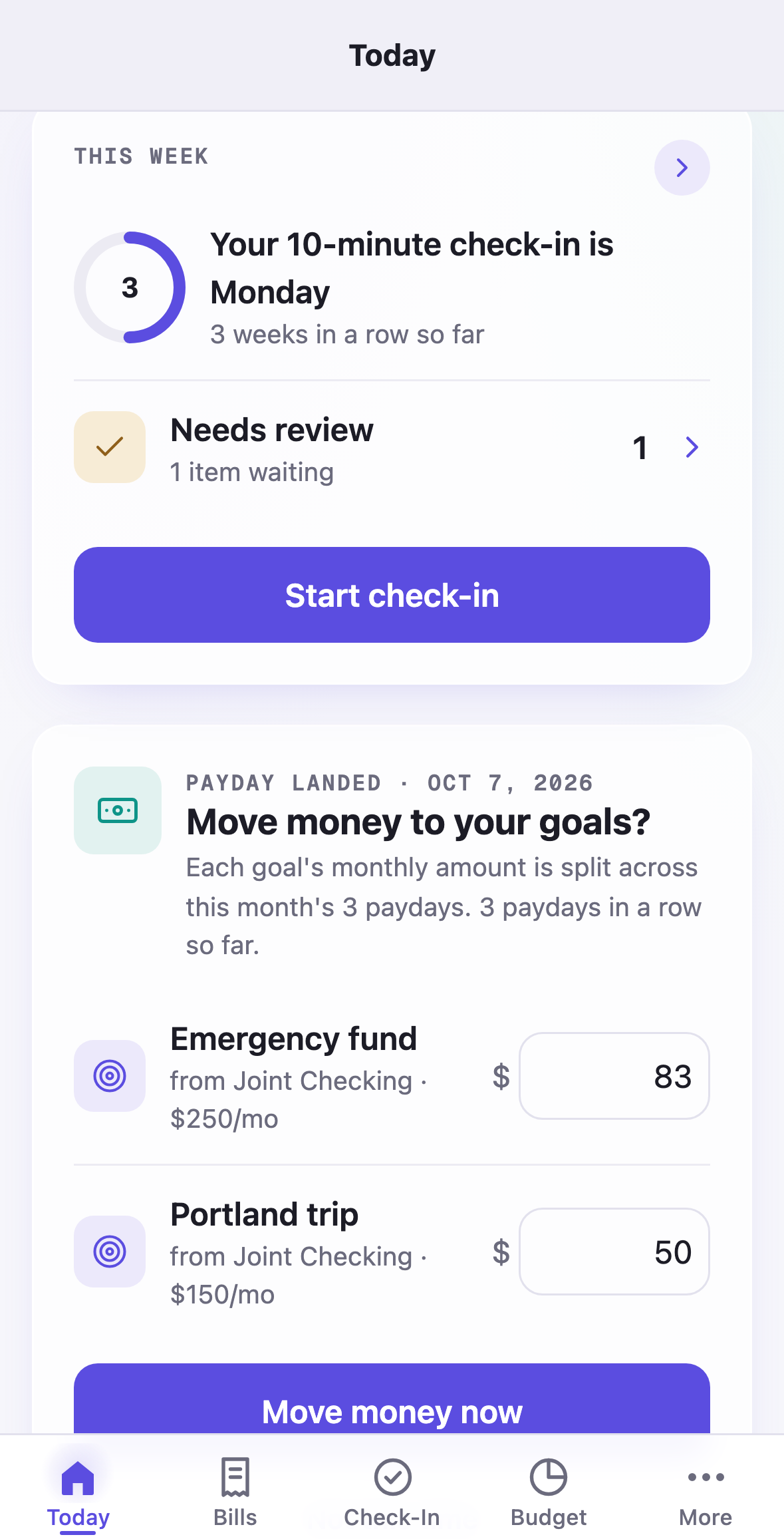
Section titled “Start a check-in”From the This week card on Today, or the Check-In tab on your iPhone, tap Start check-in. The card tells you your day (“Your 10-minute check-in is Monday”) and shows your streak in a ring. The check-in opens as its own screen, headed Week of Oct 5 – 11, with four dots for the four steps. The X in the corner saves where you are; open it again and you carry on from the same step.
Step 1: Where we stand
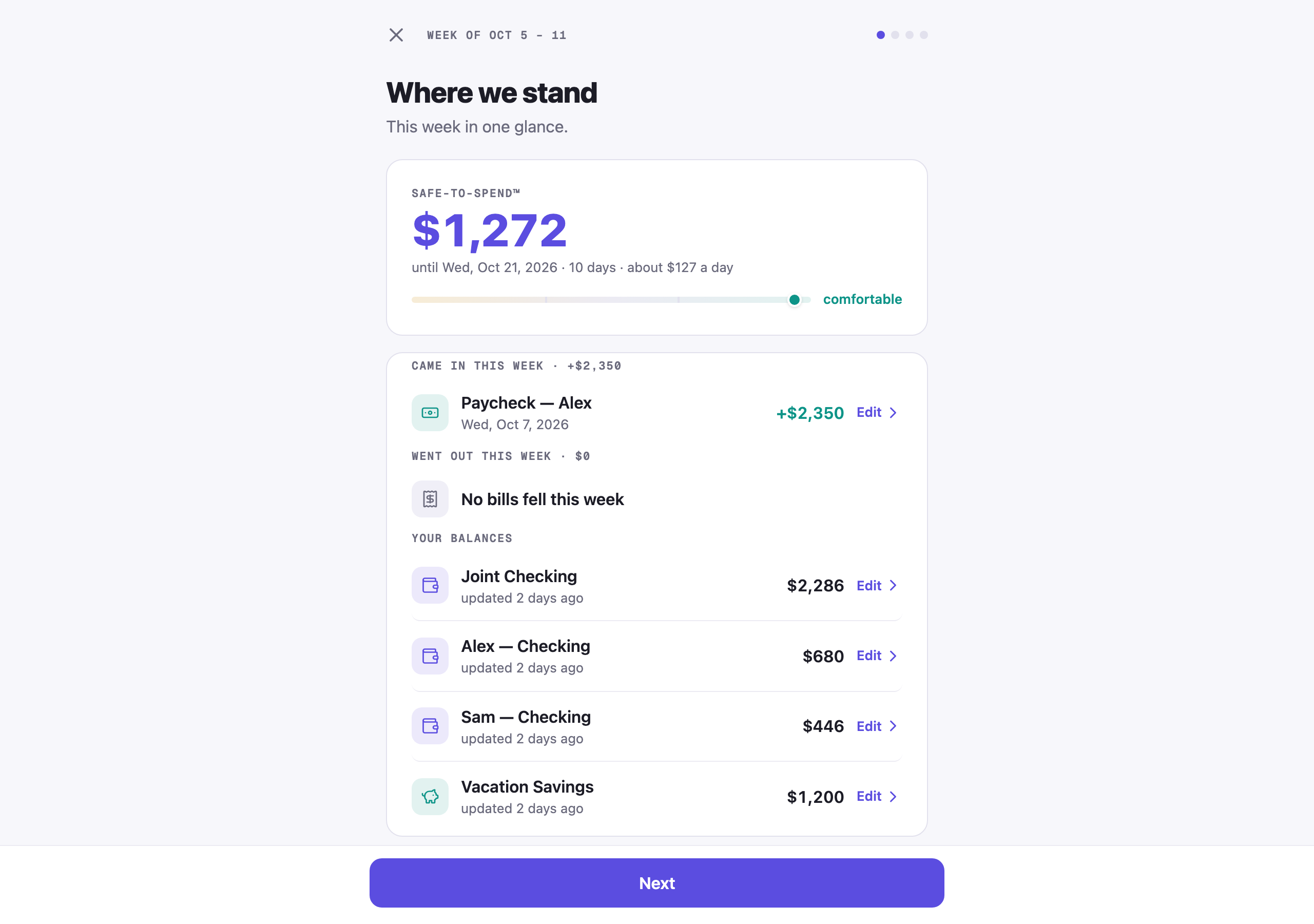
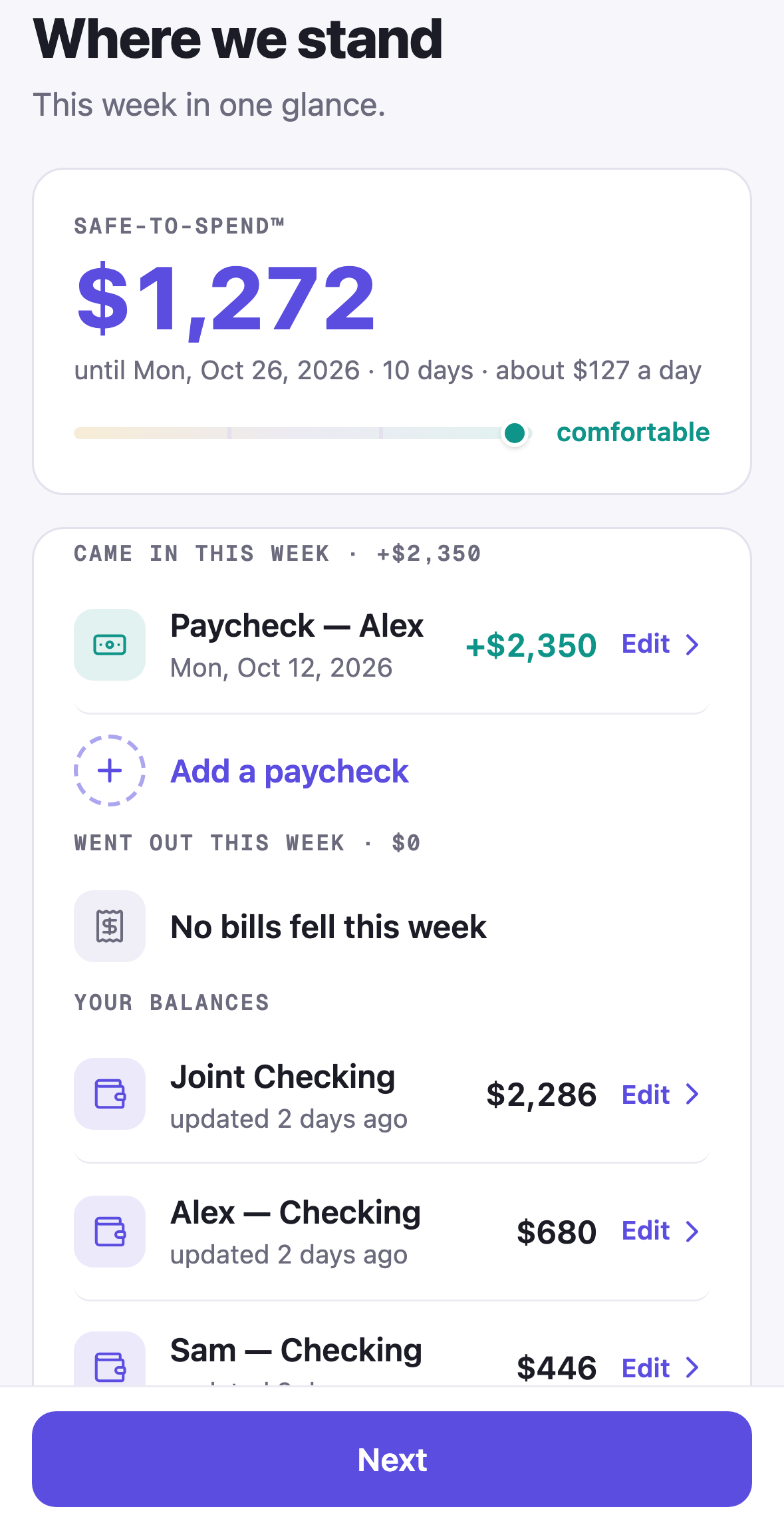
Section titled “Step 1: Where we stand”Your Safe-to-Spend™ number with the line under it and the status scale, then three short lists: Came in this week (each paycheck that landed), Went out this week (each bill that fell), and Your balances. Every row opens its sheet, so a wrong paycheck date, a bill amount, or a balance is fixed right here.
Missed something? + Add a paycheck sits under the paychecks and + Add an account under the balances, so the week can be completed without leaving the check-in.
Update all above the balances opens one sheet with every account and an amount field: type today’s balance for anything that moved, see Safe to spend after this: $1,310 (was $1,272) under the list, and save once. Rows you leave alone keep their last-updated date.
Balances are the part to refresh. Each account shows when it was last updated; past ten days the caption turns amber and reads tap to update, and a card above the list offers to update the oldest one. Type what your bank app shows, about 30 seconds per account. No transactions, no categories.
Step 2: Confirm what’s due before payday
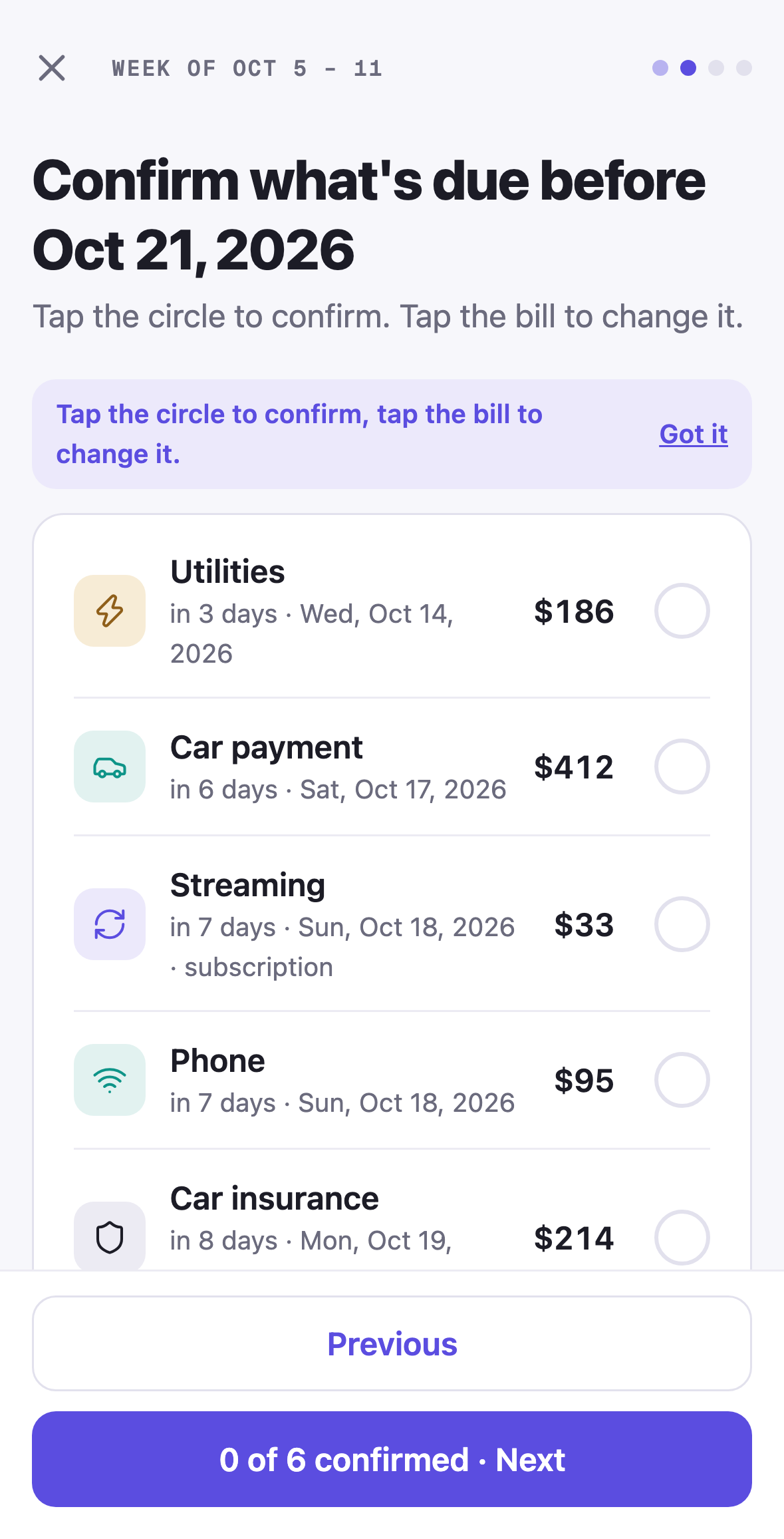
Section titled “Step 2: Confirm what’s due before payday”Every bill due before your next payday is a row: its group icon, in 2 days · Fri, Oct 9, 2026, the amount, and a circle on the right. The first time, a hint says it all: Tap the circle to confirm, tap the bill to change it.
- Tap the circle when the bill looks right. It fills teal with a tick, and the Next button counts along: 2 of 3 confirmed · Next. On iPhone, swiping the row to the right does the same, with an Undo.
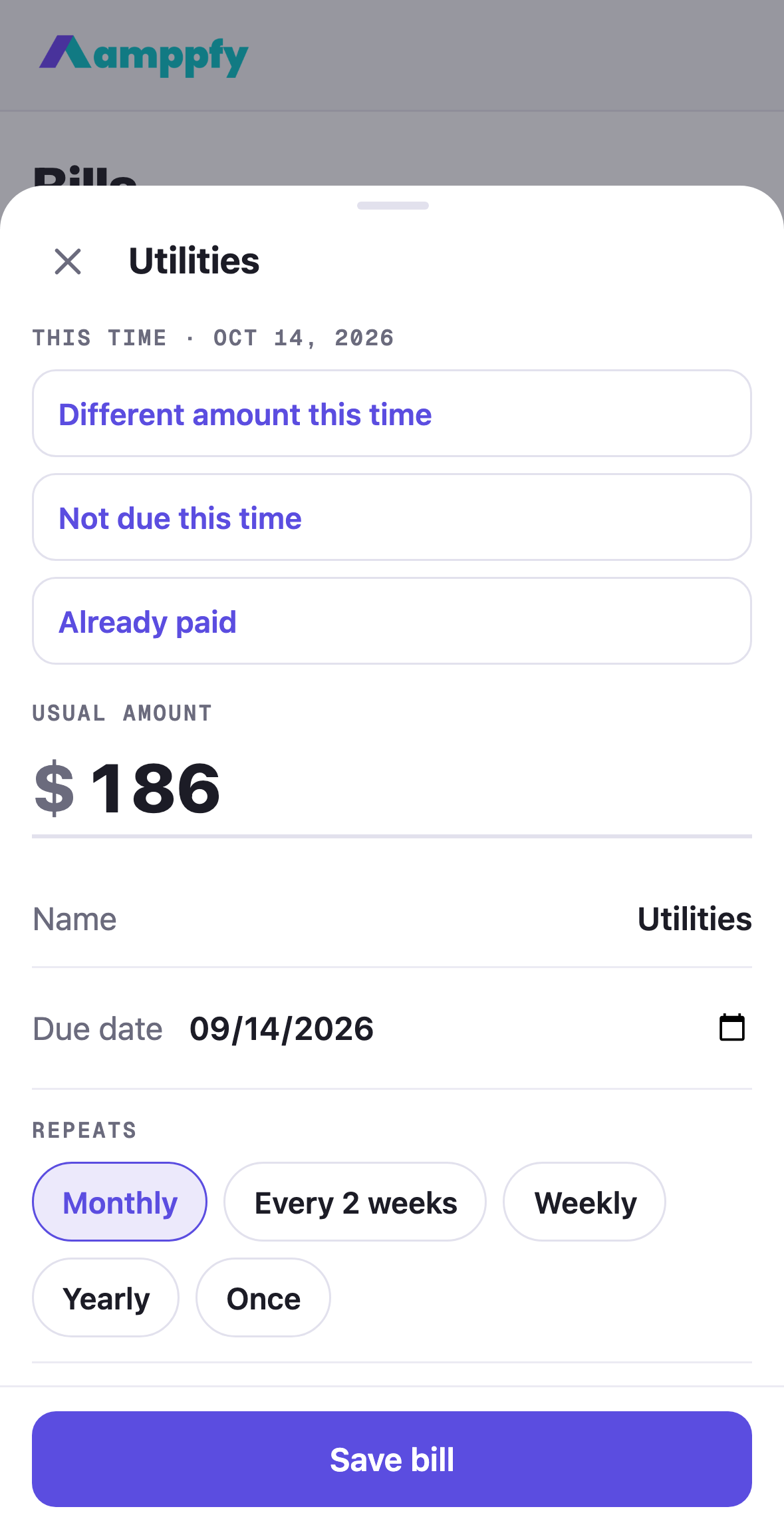
- Tap the bill when something is different this time. Its sheet opens with three quick actions on top: Different amount this time, Not due this time, Already paid. Details in Change a bill this time. A bill with a different amount comes back confirmed, with a changed chip for the rest of the week.
Confirming is for you, not a test: you can move on with some circles empty. A bill that should be on the list but is not: + Add a bill I forgot, at the end of the list, opens the bill sheet and the new bill joins the week.
Step 3: Settle what was flagged
Section titled “Step 3: Settle what was flagged”Items from Needs Review, a bill that changed, something assigned to you, appear one per card with two buttons: Settle marks it done, Push to next week parks it without guilt. With nothing waiting the screen says Nothing flagged this week.
Step 4: Close the week
Section titled “Step 4: Close the week”One question, About how much did you spend this week?, with one amount field. Groceries, fuel, dining, the lot, as a single number; last week’s answer sits in the field as a hint. Not sure is a fine answer. Then tap Close the week.
The close: three cards
Section titled “The close: three cards”Closing the week walks you through three cards. The first time it is headed First check-in done; after that, The number this week.
- Your number, with what came in and went out this week.
- Bills, settled: how many you confirmed, changed this time, settled, and pushed to next week.
- Your streak: six circles for the last six weeks, 4 weeks in a row or Week one is in the books, and your next check-in day. In a household it adds Sam will see this when they open the app.
Back to Today finishes. If you closed too soon, Reopen this check-in on the last card puts the week back.
Streaks
Section titled “Streaks”Each week you close adds one to the streak on the This week card. The streak counts consecutive closed weeks back from this one and is worked out from the weeks themselves, never a stored counter. Miss a week and the count starts again from the next week you close; nothing else changes, and your number keeps working between check-ins either way.
Doing it together
Section titled “Doing it together”If you share your household, the check-in is designed to be done together: the same ten minutes, on one screen or each on your own phone. Your partner sees the same number and the same math, whatever either of you confirms shows up for the other within a moment, and when one of you closes the week the other gets a heads-up and a dot on your avatar on Today.