
Set up two-step verification
Two-step verification (two-factor) adds a second step when you sign in, so your login stays yours even if someone learns your password. It is optional and free.
Turn it on
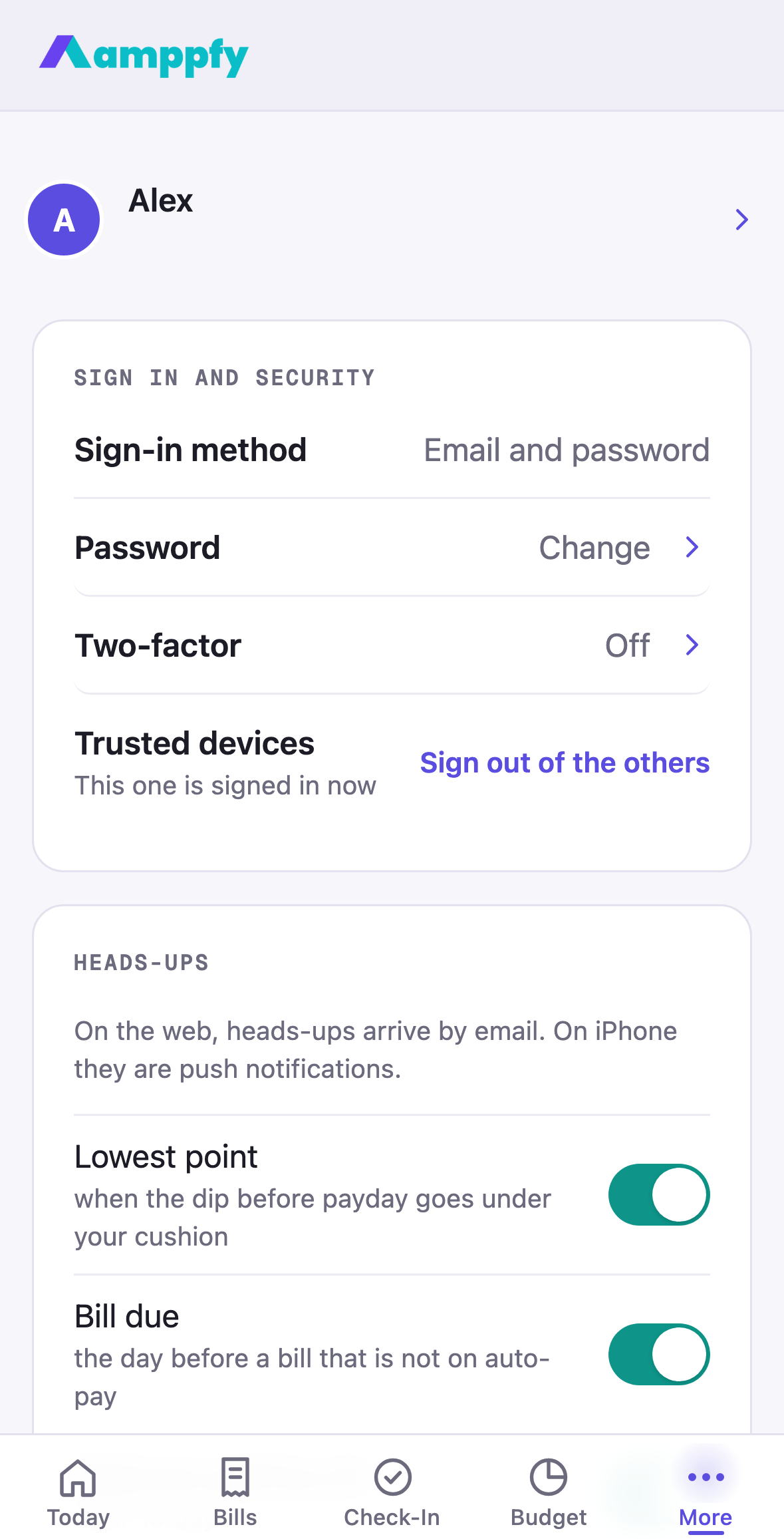
Section titled “Turn it on”- Go to Account (on iPhone, More → Account) and tap the Two-factor row. It reads Off until you turn it on.
- The Turn on two-factor sheet offers two rows:
- Authenticator app: scan a QR code once with any authenticator app (Google Authenticator, Microsoft Authenticator, 2FAS, Aegis). Can’t scan? The sheet shows a key to type in instead. Then enter the six-digit code your app shows for Amppfy.
- Email codes: we send a six-digit code to your address; type it into the six boxes. It expires in 10 minutes, with Resend under it.
- Save your backup codes. Each works once if you cannot get a sign-in code. On iPhone, Save codes… opens the share sheet so you can send them to Notes, Files, or a password manager; on the web, Download .txt. Tap Done.
The row now reads Authenticator · On or Email codes · On.
Signing in with two-step verification
Section titled “Signing in with two-step verification”Enter your password as usual, then the screen Your sign-in code shows six boxes. Type the current code from your app, or the one we emailed; it checks itself as soon as the sixth digit is in. Codes are short-lived, so use the newest one. Use a backup code switches the field to accept one of your backup codes (the XXXX-XXXX form).
On iPhone, the app also asks for a code when you reopen it after it has been fully closed (swiped away). Switching between apps does not count.
Backup codes and turning it off
Section titled “Backup codes and turning it off”Tap the Two-factor row while it is on. The sheet shows how many backup codes you have left, New backup codes to make a fresh set (the old ones stop working), and Turn off.
Trusted devices
Section titled “Trusted devices”Under the Two-factor row, Trusted devices shows that this device is signed in now, with Sign out of the others beside it: one tap signs every other device out, useful if you signed in on a shared or lost device. Changing your password does the same on its own.
If you lose access to your method
Section titled “If you lose access to your method”If you chose email codes, any device with access to your inbox can receive them. If you chose an authenticator app and got a new phone, most authenticator apps can transfer their entries; a backup code gets you in otherwise, and setting up two-factor fresh afterward works the same as the first time.