
Shared vs. private, and Needs Review
Amppfy is built so two people can share one honest number without anyone feeling watched.
What’s shared, what’s private
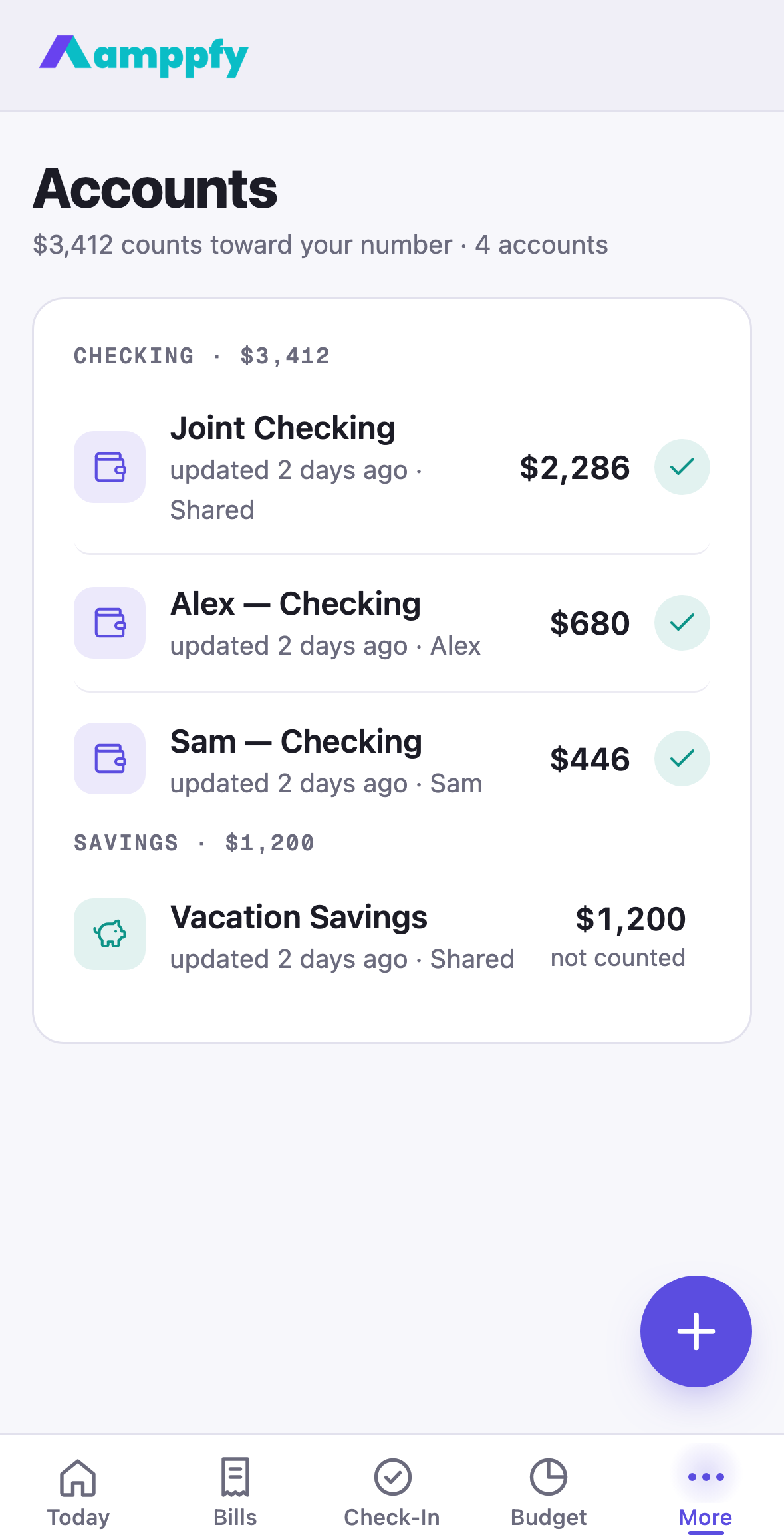
Section titled “What’s shared, what’s private”- Shared accounts, bills, and goals are visible to everyone in the household; they are part of the household’s shared math.
- Private items are visible only to the person who owns them. A private account still counts in your own number, never in your partner’s.
Everything is shared unless you mark it private. You mark an item on its own sheet: set the Owner, then Who sees it, Shared or Private. The Household screen explains this once under Shared and private, and its Type row (Fully shared, Mostly shared, Separate but coordinated) sets what new accounts default to.
The Household screen
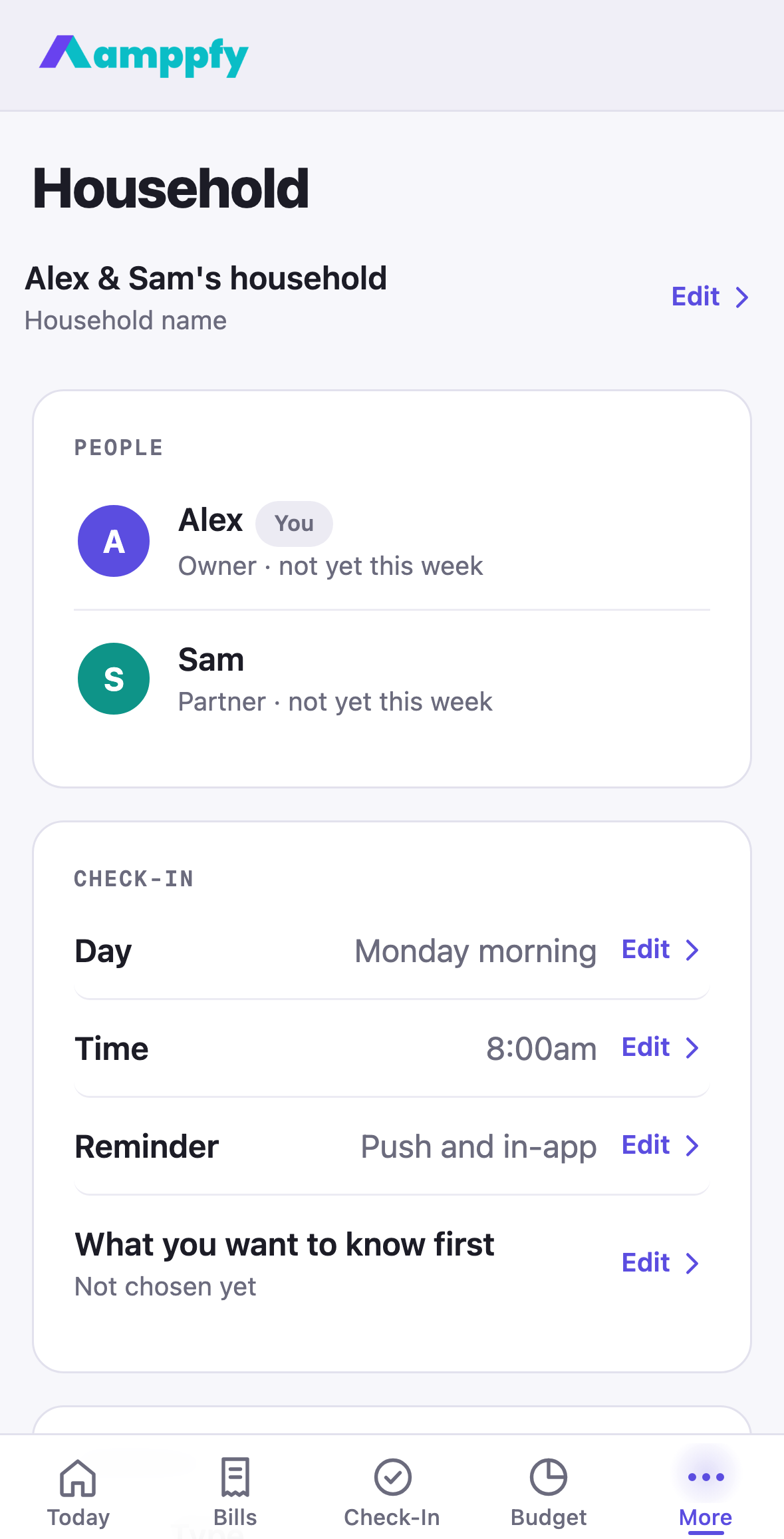
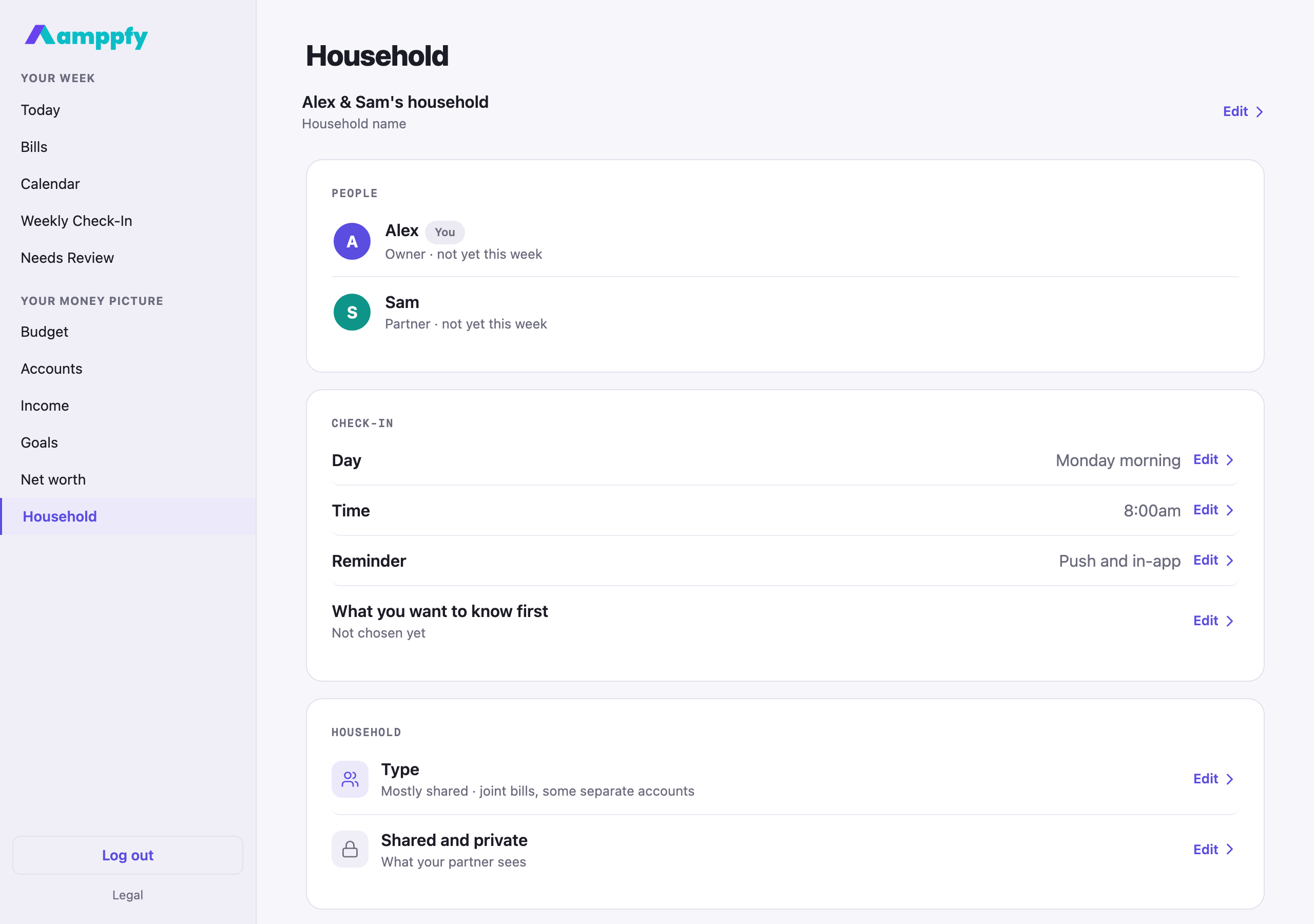
Section titled “The Household screen”On iPhone, More → Household; on the web, Household in the sidebar. From the top:
- The household name, an Edit › row; the name shows on Today and in your emails.
- People: each member with their avatar, a You chip, their role, and checked in Mon, Oct 5, 2026 or not yet this week. An empty seat offers Add your partner; see Invite your partner.
- Check-in: Day, Time, Reminder (push and in-app, in-app only, or push only), and What you want to know first, which decides which card leads Today. Each opens a short chip sheet.
- Household: Type, and Shared and private.
- A partner also sees Leave household. Private accounts and bills go with them; shared items stay.
Needs Review: heads-ups, not audits
Section titled “Needs Review: heads-ups, not audits”When something needs a person’s attention, a bill that came in higher than usual, a decision to make, it lands in the Needs Review queue, where it can be assigned, discussed, and resolved. On Today, the This week card carries a Needs review row with the count; on the web it is in the sidebar under Your week. Step 3 of the weekly check-in walks through the open items with Settle and Push to next week.
The point is not to catch anybody. It is to make sure neither of you finds out at the worst possible moment. Items show in amber, a heads-up, never an alarm.
Renaming your household
Section titled “Renaming your household”Open Household and tap the name at the top. The new name appears across the app and in your emails right away.