
Change a bill this time
Bills repeat, but not every month is the same. The electric bill comes in higher, the gym skips a month, you paid the card early. Amppfy keeps the bill as it is and lets you change this occurrence only, from the same sheet wherever you open the bill.
Where the quick actions are
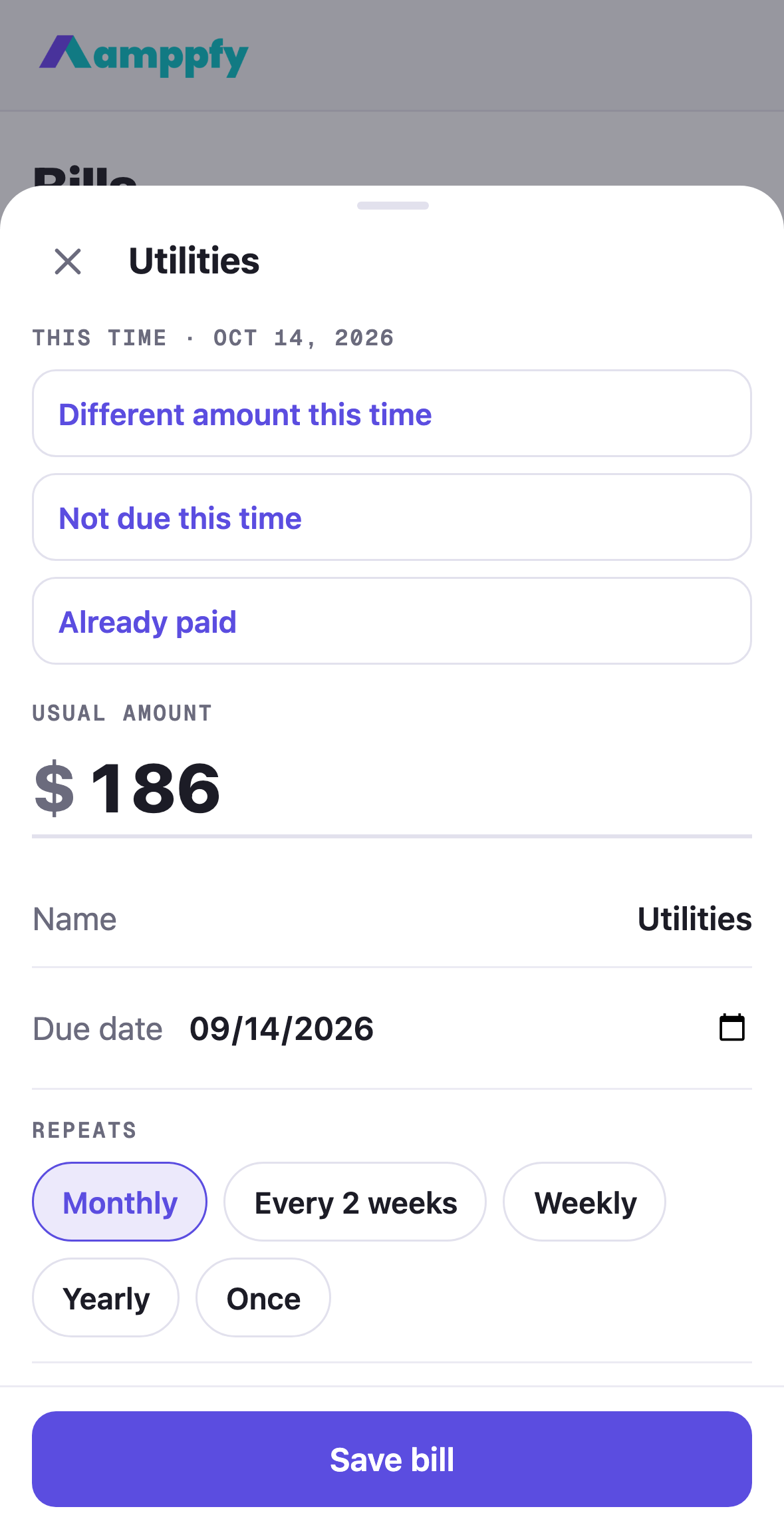
Section titled “Where the quick actions are”Open a bill from a dated row: a bill in the check-in’s confirm step, a row on Bills, or a day on the calendar. The sheet opens headed This time · Oct 9, 2026 with three buttons above the usual fields:
| Action | What happens |
|---|---|
| Different amount this time | An amount field opens, with the note that the usual amount stays for next time. Save this amount applies it to this occurrence only. |
| Not due this time | This occurrence is skipped. It leaves the bills before payday, the Bills list, the calendar and the check-in; the next occurrence is untouched. |
| Already paid | This occurrence is marked paid: it stays in the list with a teal tick, greyed, and comes out of the math because the money has already left. |
The fields under them, Usual amount, name, due date, repeats, and the rest, edit the bill itself for every occurrence. Use those when the change is permanent; use the quick actions when it is just this time.
What you see afterwards
Section titled “What you see afterwards”- A changed amount carries a purple changed chip on Bills, on Now to payday, on the calendar, and at the check-in, where the caption adds was $186 so the usual amount is never lost.
- A paid occurrence shows a teal tick on Bills and the calendar, with paid in its caption.
- A skipped occurrence simply is not listed.
Your Safe-to-Spend™ number uses the amount this time, skips what is not due, and leaves out what is paid. The receipt’s Bills before payday line and its count move the moment you save. See Why did my number change?
At the check-in
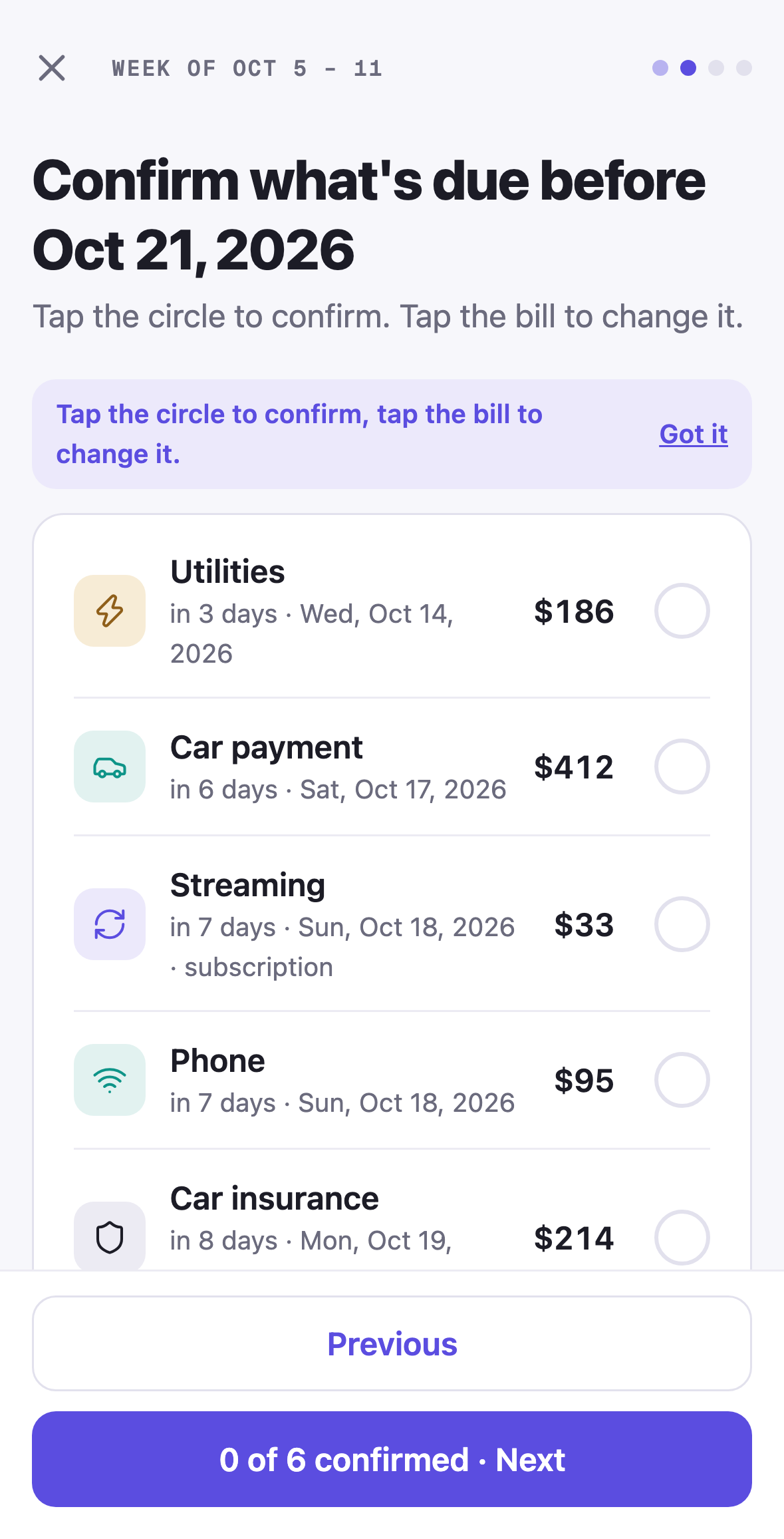
Section titled “At the check-in”Tapping a bill in step 2 opens this sheet. Different amount this time brings the bill back confirmed with the changed chip. Not due this time and Already paid take the row out of the list, so there is nothing left to confirm for it. The three-card close counts the ones you changed under Changed this time.
Changing your mind
Section titled “Changing your mind”Open the same occurrence again. Different amount this time shows the amount you set and lets you save another one. A bill marked paid or not due is out of the dated lists, so open it from the All tab on Bills, where every bill is listed once by its next date, and edit the bill itself if needed.
Related
Section titled “Related”- Add and manage bills: the one bill sheet
- Bills roll forward on their own
- Do your first check-in